Product filters
Product filters give Dialog’s AI a structured view of your catalog. Instead of relying only on semantic search, the assistant can apply real filters (price, brand, material, skin type, whatever your catalog carries) before ranking products. Filters are generated automatically from your catalog, then reviewed, edited, and published by you from the dashboard.
Filters are a tool for the AI, not a UI element: they are applied behind the scenes when the assistant searches your catalog. Your shoppers never see a filter panel.
This page is for merchants: everything below is self-serve from your dashboard. No developer needed.
Why filters change the answers
Section titled “Why filters change the answers”Without filters, the assistant retrieves products by semantic similarity. That’s strong for intent (“something cozy for winter evenings”) but weak for hard constraints: a budget, a material, a skin type are treated as hints, not rules. A €120 sweater still looks very similar to “a wool sweater under €100”, so it can slip into the results.
With filters published, the assistant works in two steps:
- It reads the shopper’s request and turns hard constraints into catalog filters (price ≤ 100, material = wool).
- It ranks only the products that pass: semantic relevance still decides the order, but non-matching products are excluded up front.
| Shopper asks | Semantic search only | With product filters |
|---|---|---|
| “A wool sweater under €100” | Wool-ish sweaters at any price can surface | Only sweaters ≤ €100 whose material is wool |
| “A moisturizer for dry skin” | Moisturizers that merely mention dryness | Only products flagged for dry skin in your catalog |
| “Something from [brand] as a gift” | Products that look like the brand’s style | Only that brand’s products |
The effect is most visible on large catalogs: the more products you have, the more likely a “close but wrong” product outranks the right one on pure similarity.
Each filter also carries instructions for the assistant (a short note explaining what the field means and when to use it), so the AI filters at the right moments, not on every message.
Where you find it
Section titled “Where you find it”Product filters live in the Dialog dashboard, under Product filters in the navigation:
https://app.askdialog.com/organization/{your-org-slug}/product-attributesWhere your filters come from
Section titled “Where your filters come from”Dialog generates filters from three sources in your catalog:
- Metafields: structured product data (see Enrich products with metafields and the catalog schema).
- Collections: how you group products in your store.
- Tags: the labels you attach to products.
Price is built in: it’s always available to the assistant as a system filter, and doesn’t count toward your active-filter limit.
Not every field makes a good filter, so generation applies quality gates:
- A characteristic must be present on enough products (at least 5 products and at least 1% of your catalog): a filter that matches almost nothing is noise.
- Free-text fields (long descriptions) and near-unique values (SKUs, identifiers) are dropped: you can’t filter on them meaningfully.
- Fields that pass get one of two types, shown as a badge on each filter:
- Full list: every value of the field is listed; the assistant filters only on the values you enable.
- Examples: the field has too many distinct values to list them all; the values shown are a sample, and the assistant can recognize others.
Fields that didn’t make the cut aren’t lost: they’re kept as suggestions behind the More filters button, so you can add the ones you know are useful.
Nothing is visible to your customers until you publish.
Collections and tags become real facets
Section titled “Collections and tags become real facets”Collections and tags are rarely one clean dimension. A typical collection list mixes brands, product categories, and marketing operations (“Summer sale”) in a single bag of values. As one giant “Collections” filter, that’s almost useless to the AI.
So Dialog goes further: an AI pass reads all your collection and tag values and groups them into named facets a shopper would recognize (for example Brand, Category, Skin type) and each facet becomes its own filter. You’ll spot them by their provenance badge: From your collections or From your tags.
A few guarantees behind this:
- Your vocabulary is never rewritten. Every value in a facet is copied verbatim from your catalog. Dialog never invents or renames values.
- Values that don’t fit a clear facet (promotions, one-offs) are set aside in an Other collections / Other tags filter instead of polluting the real facets.
- If your collections are too few or too heterogeneous to split, they stay as a single filter. Nothing breaks.
In practice, few stores structure their catalog data with filtering in mind: the facets are already implicit in collections and tags, and this step extracts them without any data work on your side.
Reading the screen
Section titled “Reading the screen”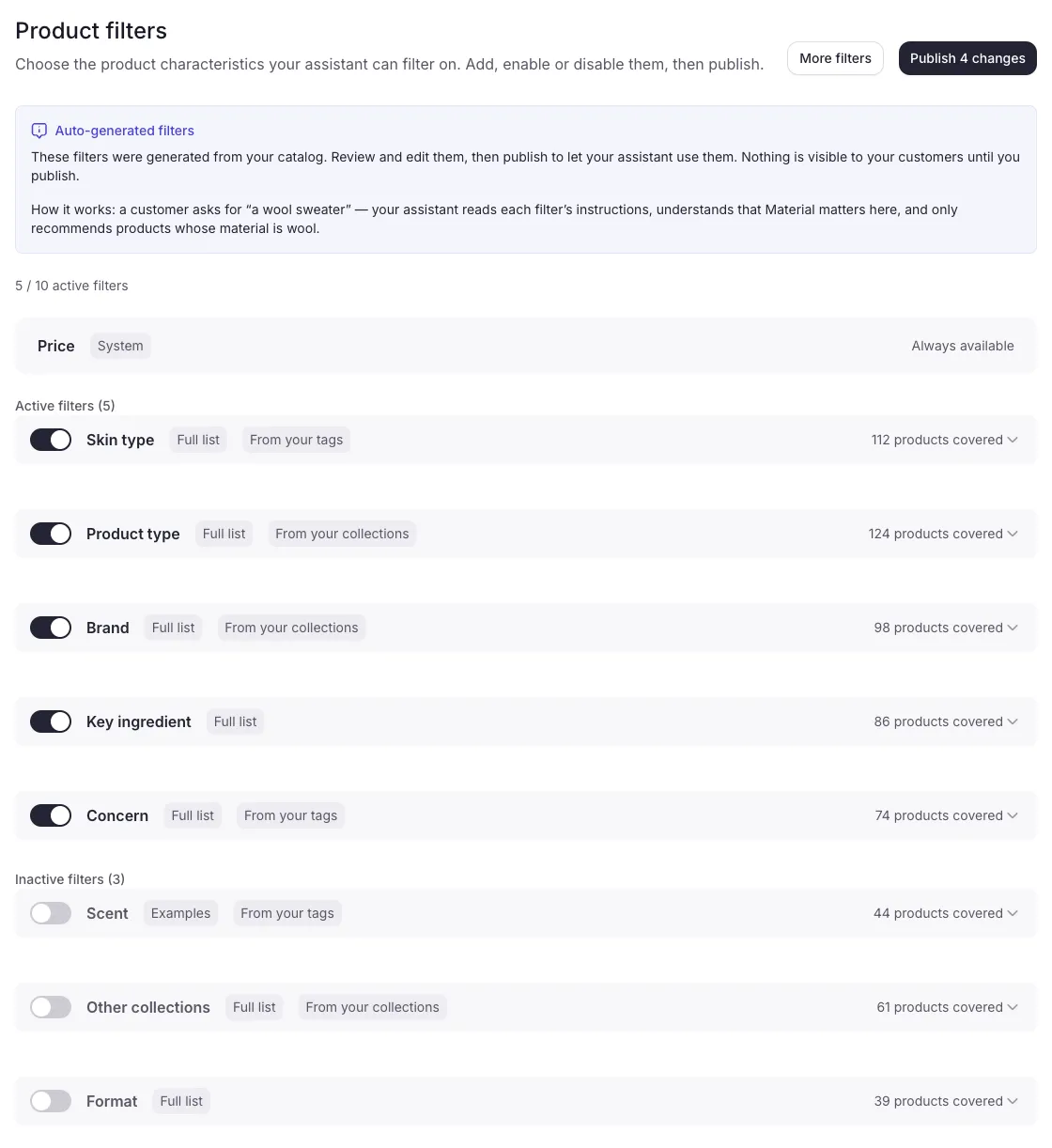
Each filter row shows, at a glance:
| Element | Meaning |
|---|---|
| Switch | Whether the filter is active. Active filters are what the assistant will use once published. |
| Label | The filter’s name, as the AI understands it. |
| Type badge | Full list or Examples (see above). |
| Provenance badge | From your collections / From your tags for facets extracted from those sources. |
| Coverage | “N products covered”: how many products carry this characteristic. |
Filters are split into Active and Inactive sections, with a counter showing how many of the maximum 10 active filters you’re using. Price sits in its own row, marked System: Always available, and doesn’t count toward the 10.
The cap is deliberate: a small set of high-coverage filters works better than a long tail of narrow ones, because every active filter is one more thing the AI has to weigh on each request.
Review, edit, publish
Section titled “Review, edit, publish”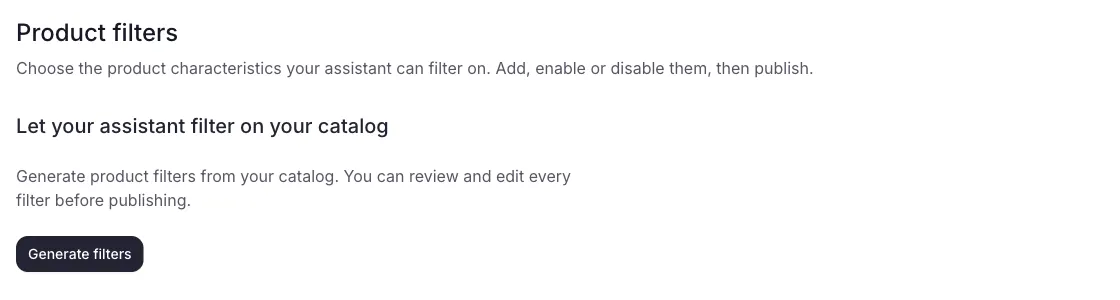
The first time you open the screen, click Generate filters: Dialog analyzes your catalog and creates a set of drafts ready for review: the highest-coverage filters enabled first, the rest inactive.
From there, everything is editable:
- Enable / disable filters with the switch (up to 10 active).
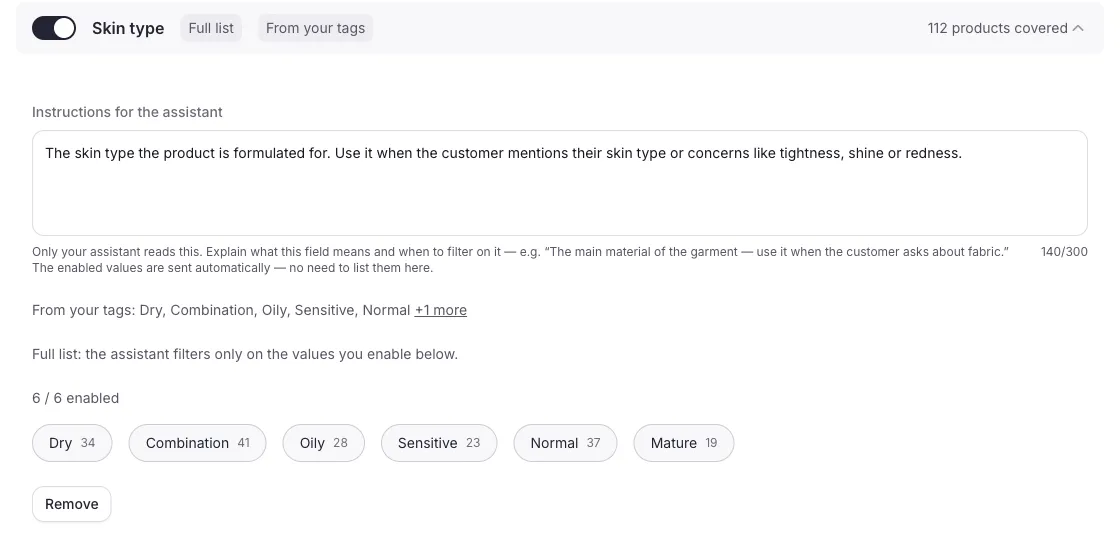
- Instructions for the assistant: per filter, explain what the field means and when to filter on it, e.g. “The main material of the garment. Use it when the customer asks about fabric.” Only your assistant reads this; the enabled values are sent automatically, no need to list them.
- Curate values: enable or disable individual values (search included; at least one value must stay enabled). On a Full list filter, disabling a value means the assistant won’t filter on it. On an Examples filter, disabling a value curates the sample shown to the AI: it doesn’t block matching.
- More filters: browse the fields that weren’t added automatically (few products fill them in, or too many distinct values) and add the ones that would make a useful filter.
- Remove a filter you never want to see again.
When you’re happy, hit Publish. The confirmation recaps how many filters and values the assistant will use. Changes take up to 5 minutes to reach search: they’re not instant.
Until you publish, your edits change nothing in production: the assistant keeps using the last published set.
Your edits survive regeneration. If filters are regenerated later (e.g. after your catalog evolves), Dialog matches the new filters against your existing ones and carries your customizations (instructions, value choices, on/off state) over to the matching filters.
Filters and the Personal Shopper
Section titled “Filters and the Personal Shopper”Published filters are used wherever the assistant recommends products: in conversation and in Personal Shopper flows.
If a specific Personal Shopper shouldn’t use some filters (e.g. a gift finder that shouldn’t filter on skin type), you can exclude them per Personal Shopper in Results & recommendations → Advanced settings → Filter attributes, alongside the include/exclude collections settings.
Good practices
Section titled “Good practices”- Keep the shopper’s vocabulary. Favor filters shoppers actually use to decide (budget, material, skin type, room) and disable internal taxonomy.
- Write instructions like a short brief. One or two sentences, as if for a new salesperson: what the field means, when it matters.
- Filter quality follows data quality. Consistent tags, well-structured collections, and good metafields directly improve what gets generated.
- Re-publish after big catalog changes. New collections or a re-tagging campaign are a good moment to revisit the screen.