Customize Dialog
Dialog is set up and trained. Time to make it yours. Personalizing Dialog helps it blend with your store and reflect your brand.
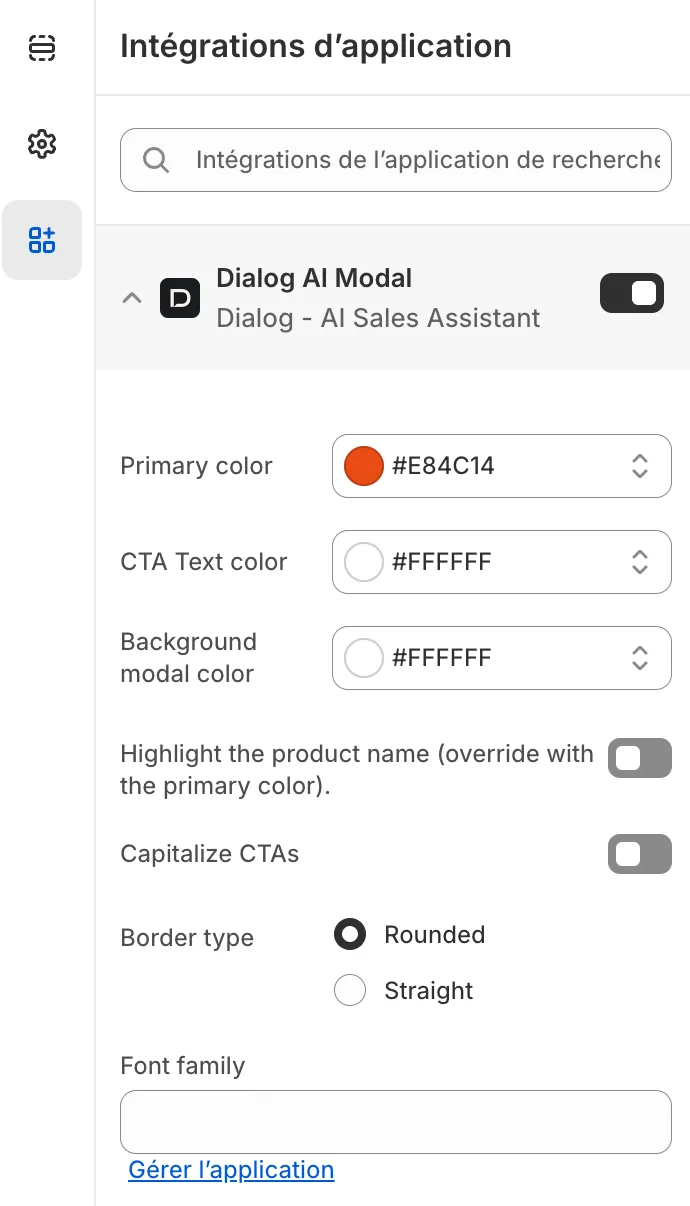
1. Visual customization in Shopify
Section titled “1. Visual customization in Shopify”From your Shopify theme settings, adjust:
- Font and colors to match your brand.
- Custom CSS for anything the settings don’t cover: spacing, borders, sizing, or a specific Dialog element.
2. Assistant personalization in Dialog
Section titled “2. Assistant personalization in Dialog”In your Dialog dashboard, define the assistant’s identity:
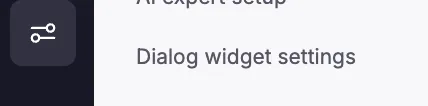
- Name: give your assistant a friendly or brand-aligned name.
- Assistant logo: upload your logo.
- Add-to-cart logo: pick an icon that fits your industry.
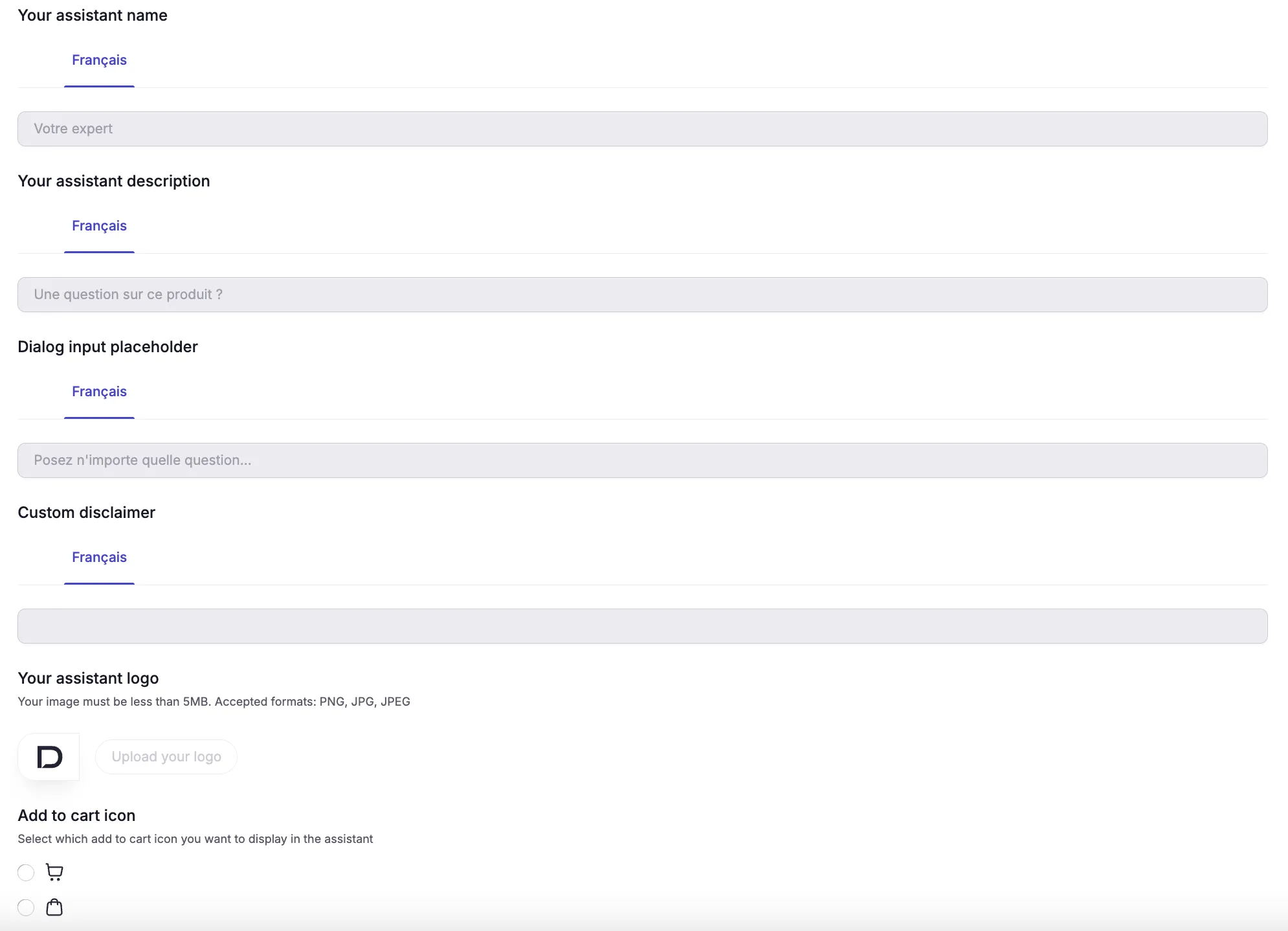
A well-personalized assistant looks better and builds more trust with customers.
3. Customize the assistant with CSS
Section titled “3. Customize the assistant with CSS”The Dialog assistant renders with documented hooks: element IDs and CSS classes you can target with your own CSS. They work on any platform (Shopify, PrestaShop, or a custom SDK install): use them to restyle any part of the assistant (fonts, colors, borders, spacing).
The selectors on this page are the supported surface. Prefer them over anything you find by inspecting the DOM: deeply nested internal elements can move when we update Dialog components, and an override that targets them may need a review after an update.
Where you add the CSS depends on your install:
- Shopify: the Custom CSS field in your theme settings.
- PrestaShop: your theme’s stylesheet, or a custom CSS module.
- SDK / custom: any stylesheet loaded on the pages where the assistant appears.
Scope every override to Dialog
Section titled “Scope every override to Dialog”CSS flows both ways on a storefront: a broad rule you write for Dialog can restyle your whole store, and your theme’s broad rules can leak into Dialog (more on that below). The same habit protects you from both: always anchor your selector to a Dialog ID or class, never a bare element.
/* Good: only Dialog's messages are affected */#dialog-drawer .dialog-message { font-size: 14px !important;}/* Bad: every button on your store, including several inside Dialog */button { border-radius: 0;}Containers (target by ID)
Section titled “Containers (target by ID)”Use these to style whole regions of the assistant. The # selector targets an ID.
| Selector | Target |
|---|---|
#dialog-shopify-ai |
Root container of the Dialog Shopify app |
#dialog-ai-bar |
The AI bar and its input |
#dialog-drawer |
The drawer panel, root container for the conversation |
#dialog-ai-container |
The assistant conversation area |
#dialog-ai-input |
The question input field |
#dialog-bookmark |
The bookmark button |
Elements (target by class)
Section titled “Elements (target by class)”Use these for individual elements inside the conversation. The . selector targets a class.
| Selector | Target |
|---|---|
.dialog-human-message |
Customer (shopper) messages |
.dialog-message |
Assistant (AI) messages |
.dialog-suggestions-item |
Suggested questions |
.dialog-feedback-button |
Thumbs up / down feedback buttons |
.dialog-diagnostic-choice-with-photo |
Visual diagnostic choice card (with photo) |
.dialog-diagnostic-choice-without-photo |
Visual diagnostic choice card (no photo) |
.dialog-diagnostic-action-button |
Visual diagnostic action button |
CSS variables
Section titled “CSS variables”| Variable | Controls |
|---|---|
--dialog-overlay-bg |
Overlay background color (set on #dialog-drawer) |
#dialog-drawer { --dialog-overlay-bg: rgba(0, 0, 0, 0.45);}- Change the font. Dialog applies its font on
#dialog-drawer. Override it there to restyle every message at once, or target a single class like.dialog-human-messagefor finer control. - Use
!importantwhen a rule doesn’t apply. Dialog ships scoped inline styles, so your override may need!importantto win.
Example
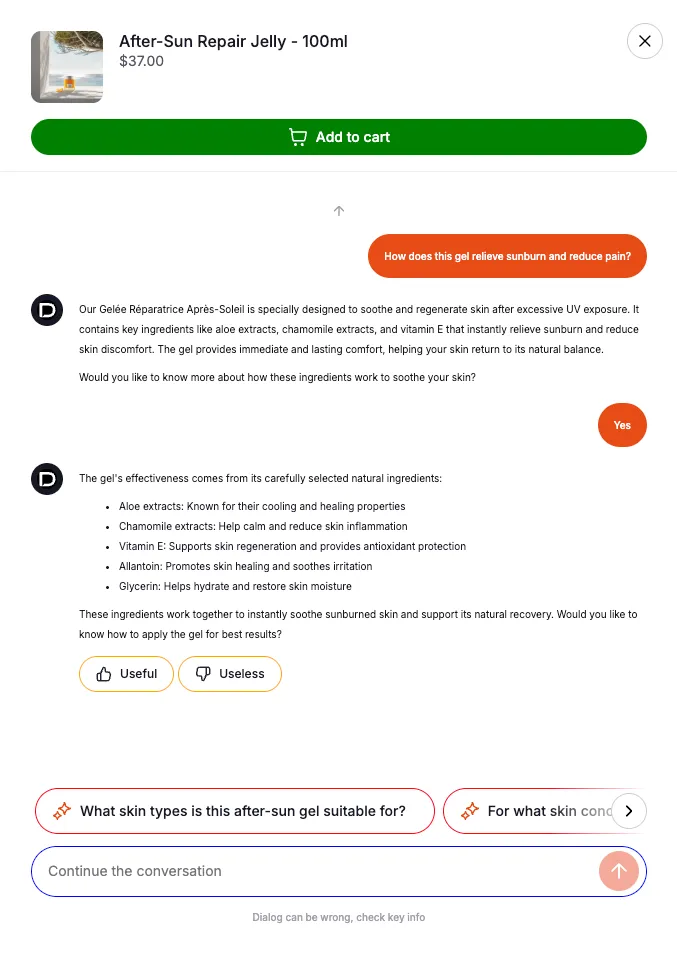
Section titled “Example”/* Custom font for shopper messages */#dialog-drawer .dialog-human-message { font-family: "Georgia", serif !important;}/* Restyle suggested questions */#dialog-drawer .dialog-suggestions-item { border-color: red;}/* Recolor feedback buttons */#dialog-drawer .dialog-feedback-button { border-color: orange;}/* Shrink all conversation text */#dialog-drawer .dialog-human-message,#dialog-drawer .dialog-message,#dialog-drawer .dialog-message * { font-size: 10px !important;}Result:
4. When your theme’s CSS leaks into Dialog
Section titled “4. When your theme’s CSS leaks into Dialog”Most themes ship global rules for form elements, something like:
input[type="text"] { height: 52px; padding: 16px; border: 1px solid #000;}Dialog renders inside your page, so these rules hit its inputs too. If the AI bar input looks too tall, carries padding it never had, or inherits a border from your theme, this is almost always why.
Don’t loosen the theme rule: your storefront’s own forms depend on it. Reset the inherited properties inside Dialog instead, then add back what you want.
Reset the AI bar input
Section titled “Reset the AI bar input”#dialog-shopify-ai #dialog-ai-bar input[type="text"],#dialog-ai-bar #dialog-ai-input { height: auto !important; min-height: 0 !important; padding: 0 !important; border: none !important; box-shadow: none !important; background: transparent !important;}Then re-apply the styles you do want:
#dialog-ai-bar #dialog-ai-input { font-size: 14px !important; color: #111 !important;}Reset the drawer input
Section titled “Reset the drawer input”Same pattern, scoped to the drawer:
#dialog-drawer #dialog-ai-input,#dialog-drawer input[type="text"] { height: auto !important; min-height: 0 !important; padding: 0 !important; border: none !important; box-shadow: none !important;}Doubling the scope (a Dialog container plus the input selector) keeps the reset from touching anything outside Dialog, and gives it enough specificity to beat the theme rule.
5. Troubleshooting
Section titled “5. Troubleshooting”The AI bar input is too tall or misaligned
Section titled “The AI bar input is too tall or misaligned”A theme rule targeting all text inputs (usually input[type="text"]) is leaking in. Apply the AI bar reset above.
A Dialog button changed after a theme update
Section titled “A Dialog button changed after a theme update”The update likely added or changed a broad selector such as button, .button, or [type="button"]. Don’t counter it with another global rule; scope the fix to Dialog:
#dialog-drawer .dialog-feedback-button { border-radius: 8px !important;}A customization works on one page but not another
Section titled “A customization works on one page but not another”The CSS isn’t loaded everywhere Dialog appears. On Shopify, make sure it sits in the active theme’s Custom CSS settings, not in a page-specific section.
A selector stopped working after a Dialog update
Section titled “A selector stopped working after a Dialog update”The override probably targeted an internal element instead of a documented hook. Rewrite it against the IDs and classes on this page, and treat any deep override as worth a quick check after a Dialog update.
6. When to contact Dialog support
Section titled “6. When to contact Dialog support”Write to paul@askdialog.com when:
- you need to restyle an element that has no documented ID or class on this page: we’d rather expose a hook than have you target internals;
- a documented selector stopped working after a Dialog update;
- a theme update broke Dialog’s appearance and you can’t find the conflicting rule.
Include your store URL, the page where the issue appears, a screenshot, and the CSS you added. Before you contact support explains why these items get you an answer in one round-trip.